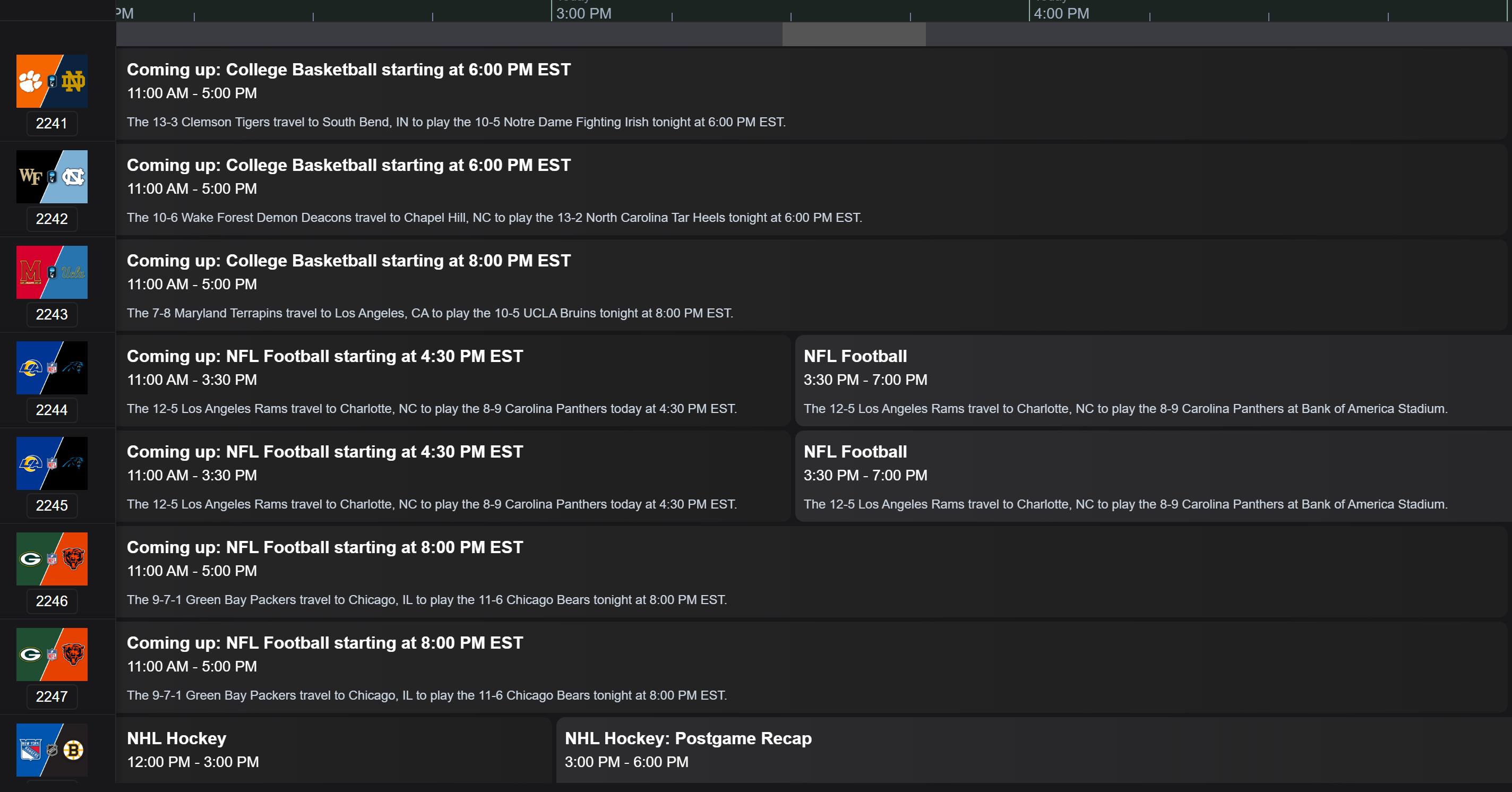
How to setup and use Teamarr v2 along with inegration with Dispatcharr
Then start Teamarr using docker compose up -d
Once started you can open Teamarr by going to
http://localhost:9195
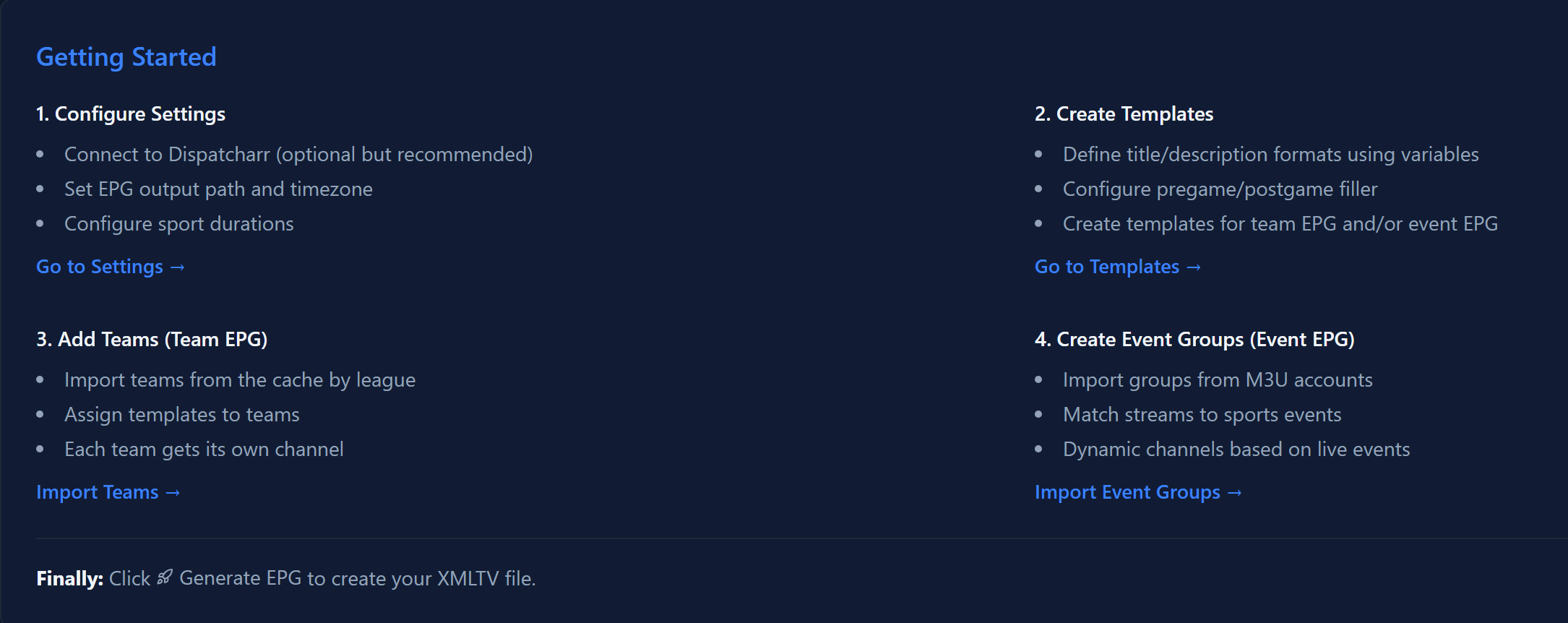
This is the main menu broken into each section
Dashboard - The main dashboard once
setup shows your Teams, Event Groups, EPG and channels at a glance
Templates - Where you create and edit
templates to use for team and event channels
Teams - Where you set up the sports
and teams to create a team EPG for.
Event Groups - Where you set up the
groups you want to use for event channels
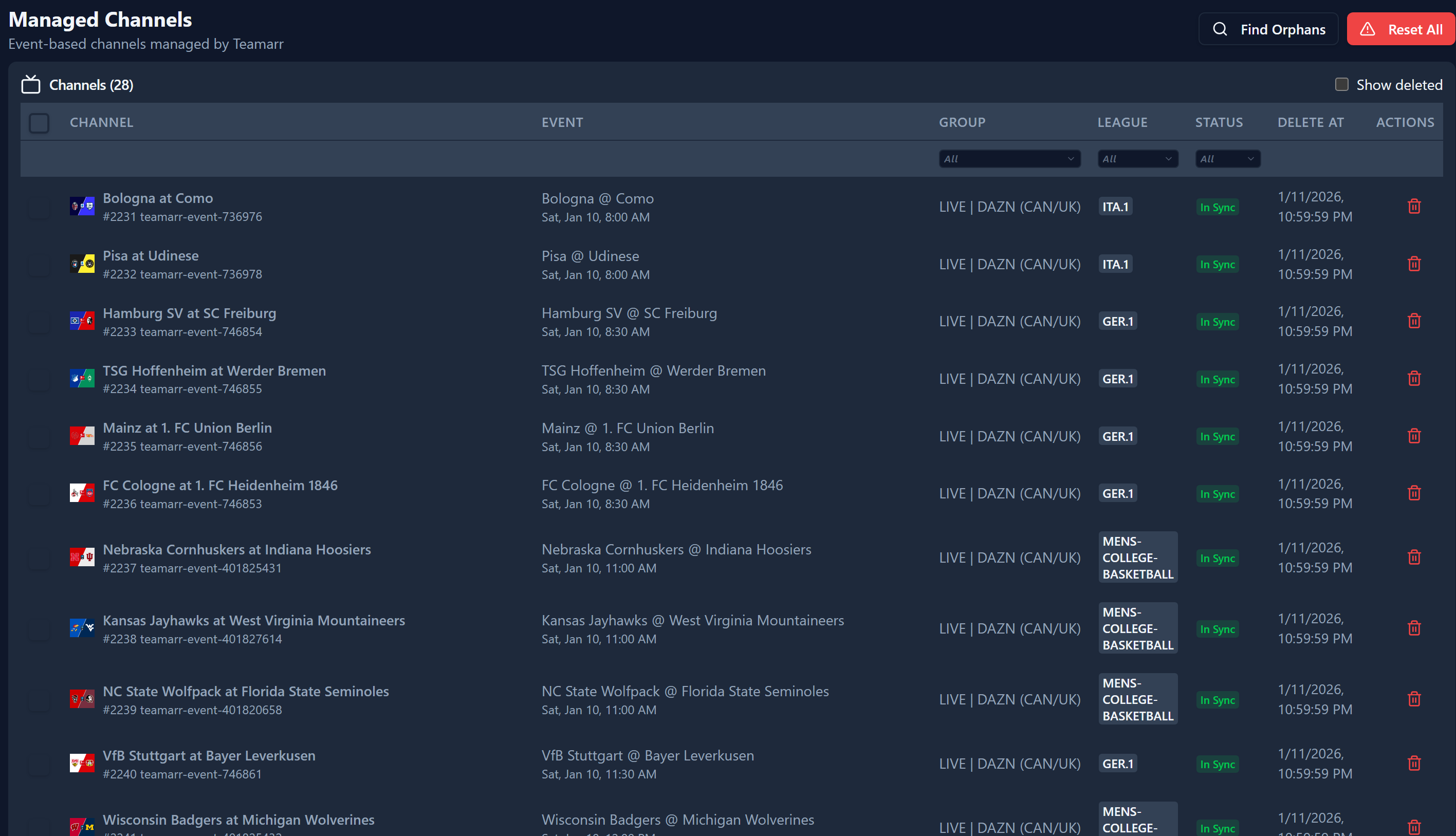
Channels - Where you see the event
channel details created in Dispatcharr
Settings - Where you set all the
basic and global settings used in Teamarr and where we will begin
Confirm your timezone and format and if you want the timezone displayed

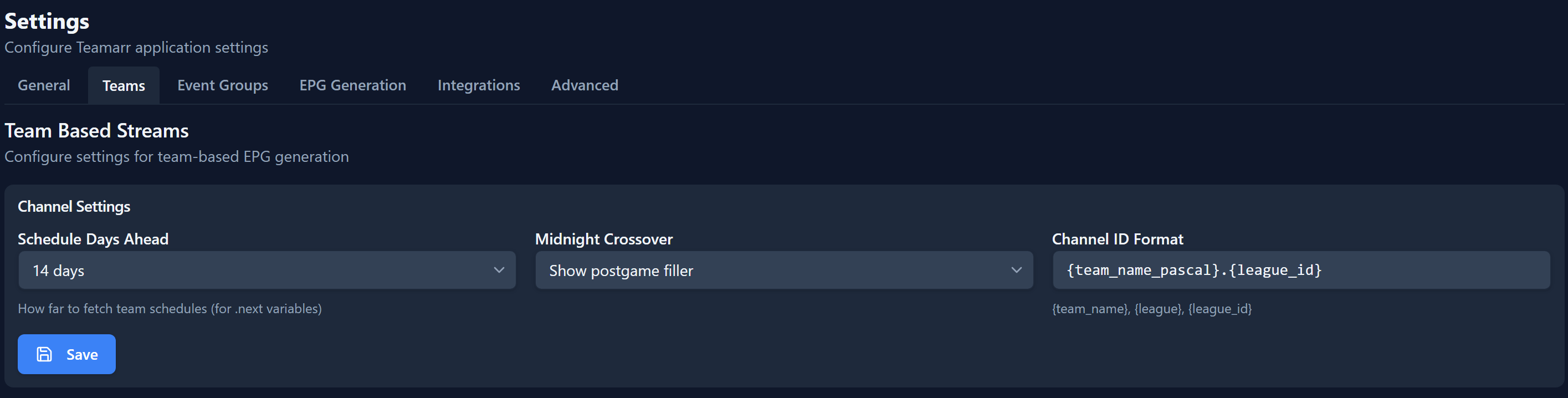
This is where you set the settings for the team channels
EPG
Schedule Days Ahead - How many days of EPG do you want to
generate (7 or 14 is probably best)
Midnight Crossover - If there is no game the following day do
you want the previous postgame entries to continue or use Idle Day filler
Channel ID Format - Default "{team_name_pascal}.{league_id}"
will create channel id for example kansascitychiefs.nfl or newyorkmets.mlb
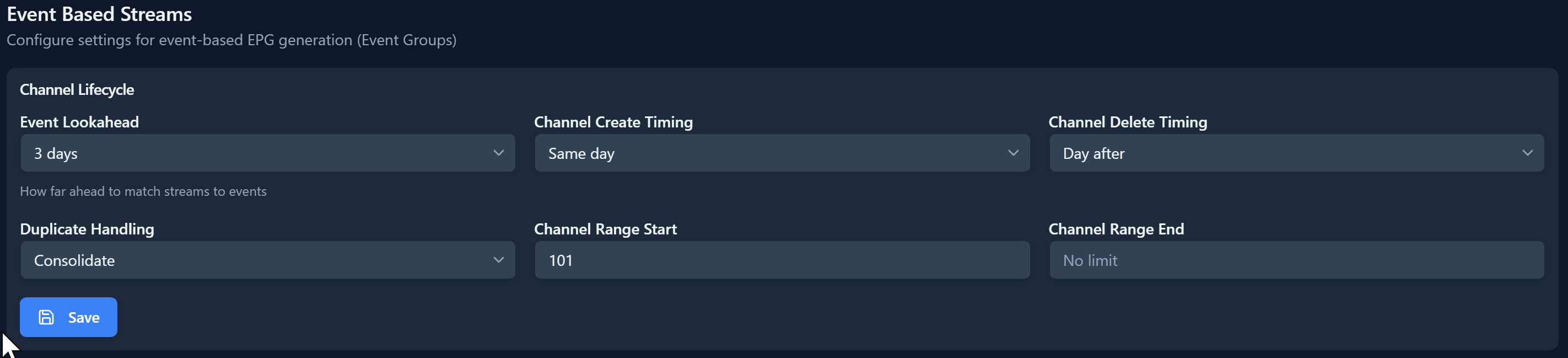
This is divided into three sections
Channel Lifecycle
Event Lookahead - How many days to look
in the future to match an event to a stream
Channel Create Timing - When an event is matched when the
channel is created in Dispatcharr. Same day is Midnight on the day of the
event or when the event appears if later than midnight.
Channel Delete Timing - When the channel is removed from
Dispatcharr. Same day is 11:59pm (local time) the day of the event except
for late games ending at midnight or later will continue until the next day
11:59pm. If the stream is removed prior to the time listed then the
channel will be removed at that time.
Duplicate Handling - Consolidate will create one channel with
duplicate streams added as additional streams for failover. Separate will create
additional channels, Ignore will not add the streams to existing or create
additional.
Channel Range Start/End - The range of channel numbers to
create in Dispatcharr. Can also be set in each group.
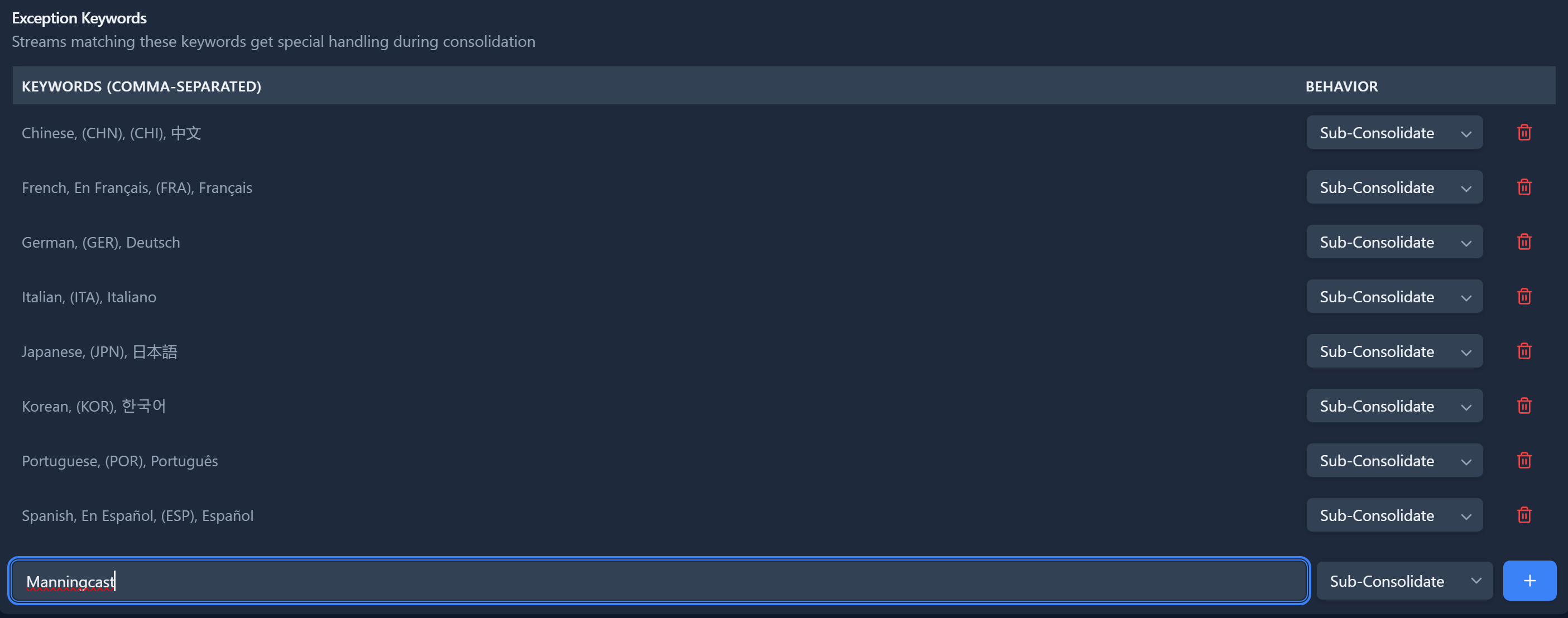
Exception Keywords
This gives you options if a stream has certain keywords they can be
Sub-consolidated into a new channel with all streams meeting that term,
Separated into new channels for each or Ignored and not added or created.
You can delete the included keyword or create additional like Manningcast or
Prime Vision.
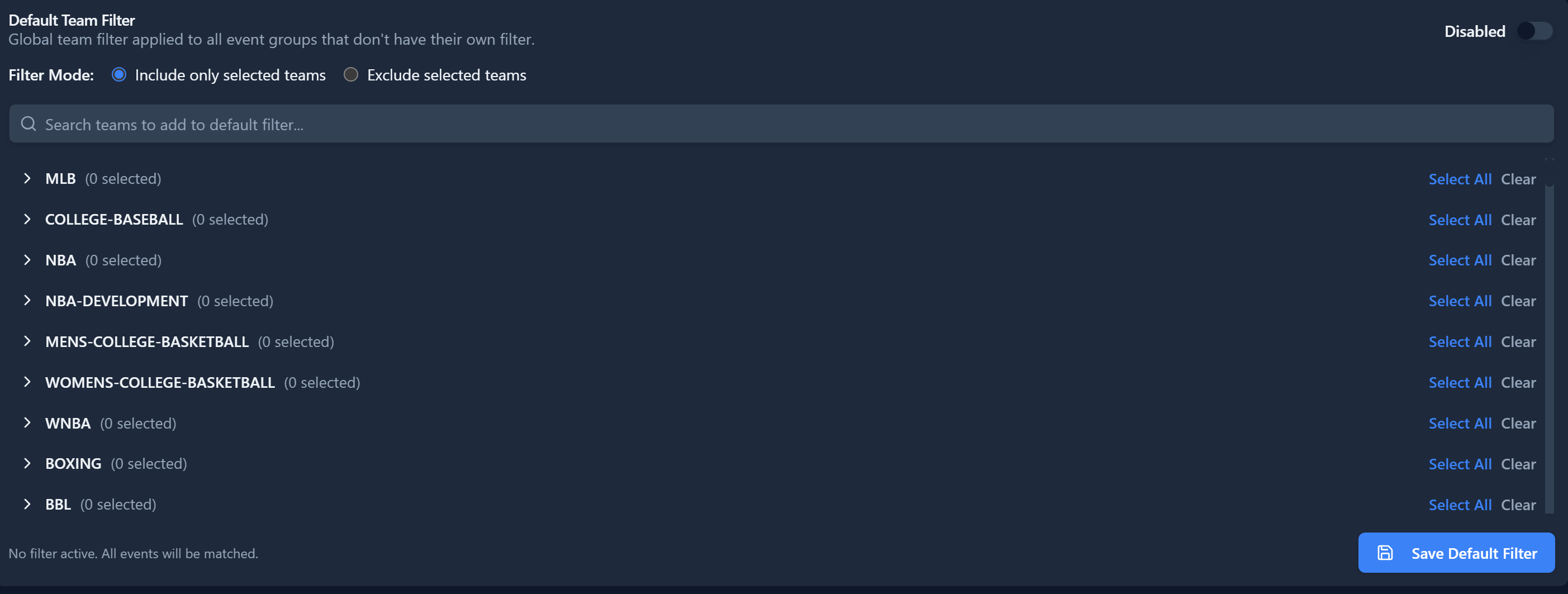
Default Team Filter
Disabled by default but you can use this to either include specific
teams only or exclude specific teams from creating event channels for by sport
and league
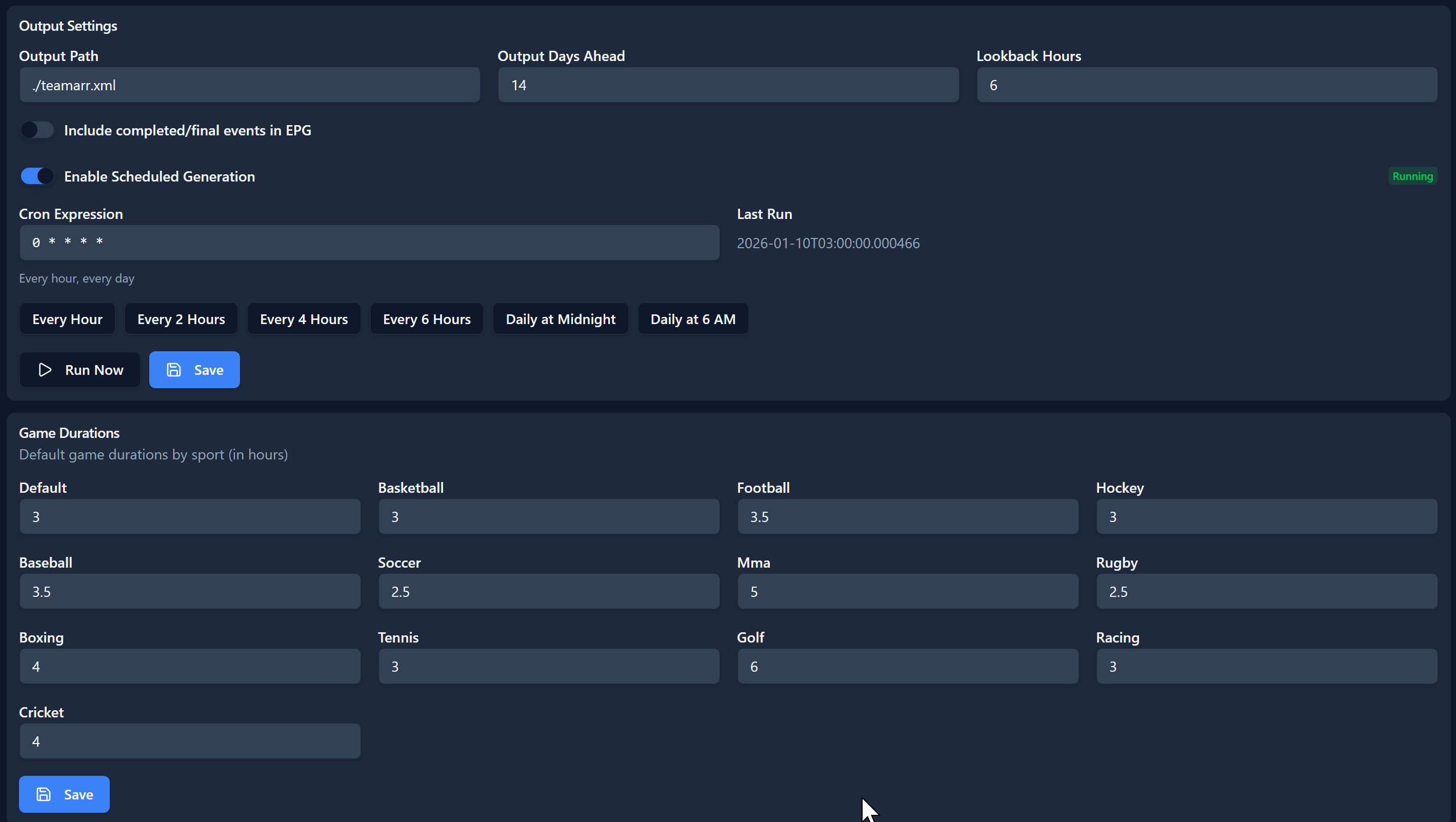
Output Settings
Output Path - Where the XML file is saved in the container
Output Days Ahead - Similar to EPG generated timeframe
Lookback hours - Hours to include prior to the current EPG G eneration
Include completed/final events - Will continue to generate EPG entries
after a game finishes
Enable Schedule Integration - Default setting updates hourly at the top
of the hour
Game Durations:
Default timeframes for each sport. Generally has 30 minutes buffer built
in to the average time for an event.
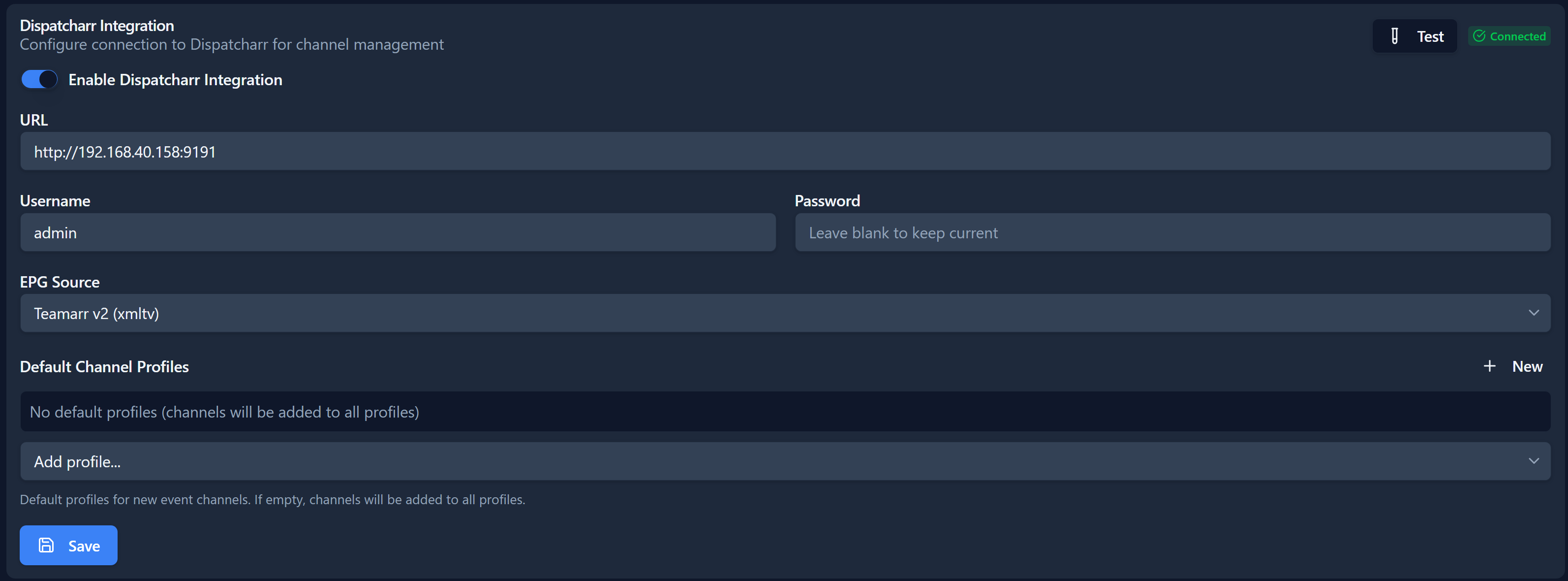
Dispatcharr Integration - Enter your
Dispatcharr URL, Username and Password then Test at the top right to ensure
Teamarr can connect to Dispatcharr to Create and Delete managed channels, access
M3U's to find events and refresh EPG when updated. Once you create your
first EPG also add as the EPG Source to refresh.
Default Channel Profile - If you wish the Teamarr channels to be added to a
specific profile(s) select them here and Save
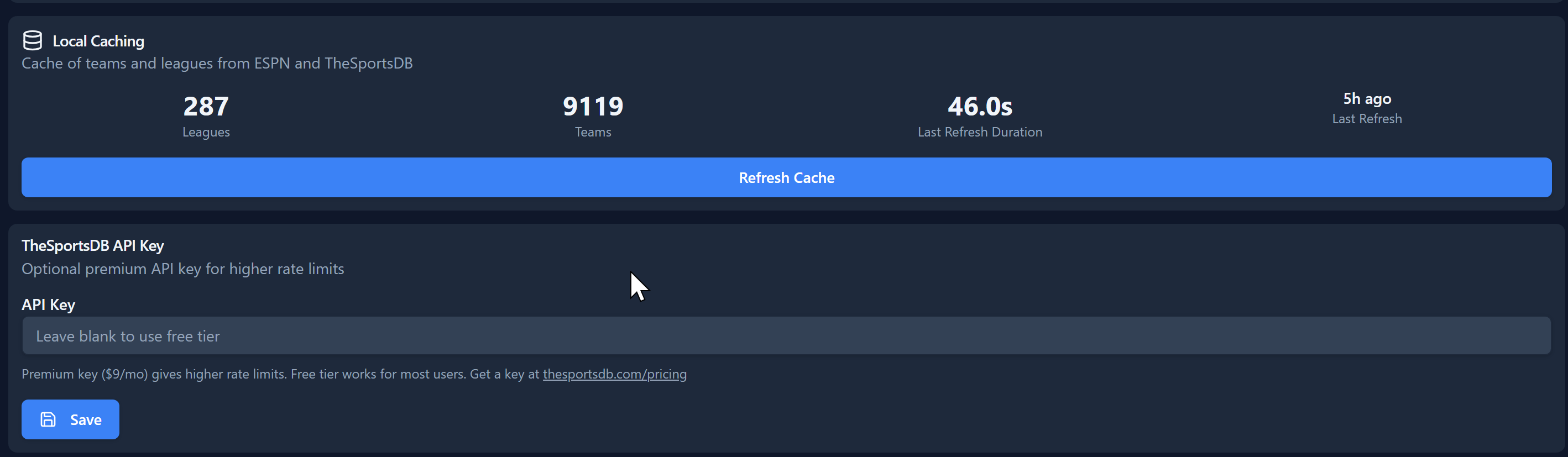
Local Caching -
Teams are cached on startup to save speed you may do a manual refresh if needed
TheSportsDB API Key - Advanced users may purchase and add an API key
for TheSportsDB. Most users will not need this
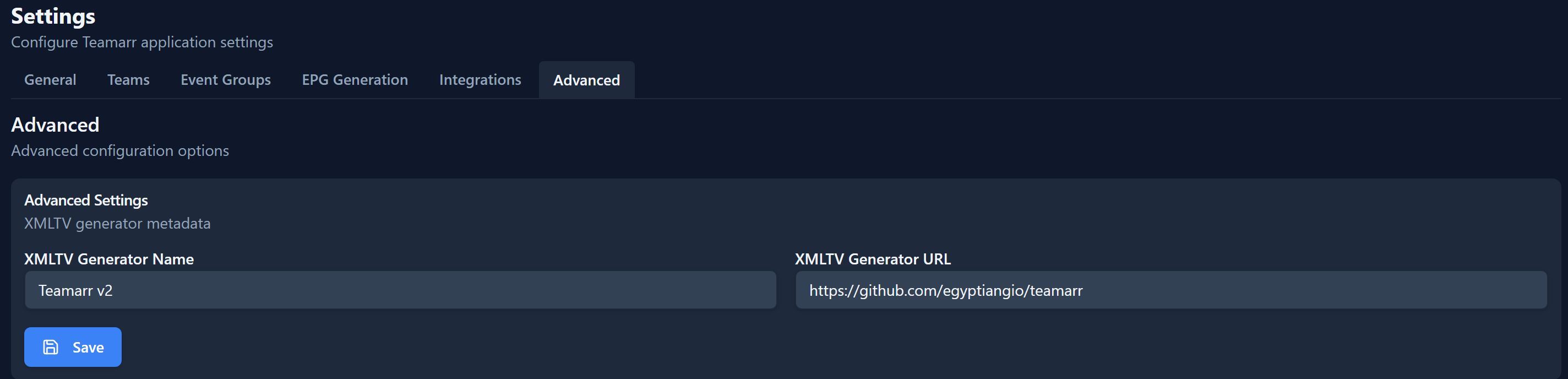
This updates the XML Generator Info at the top of the XML file
On the first setup you will have the option to Import a template or Create New Template. Creating New will prompt if you want to create a Team or Event template. You can also import a Team or Event template to get you started and edit how you wish.

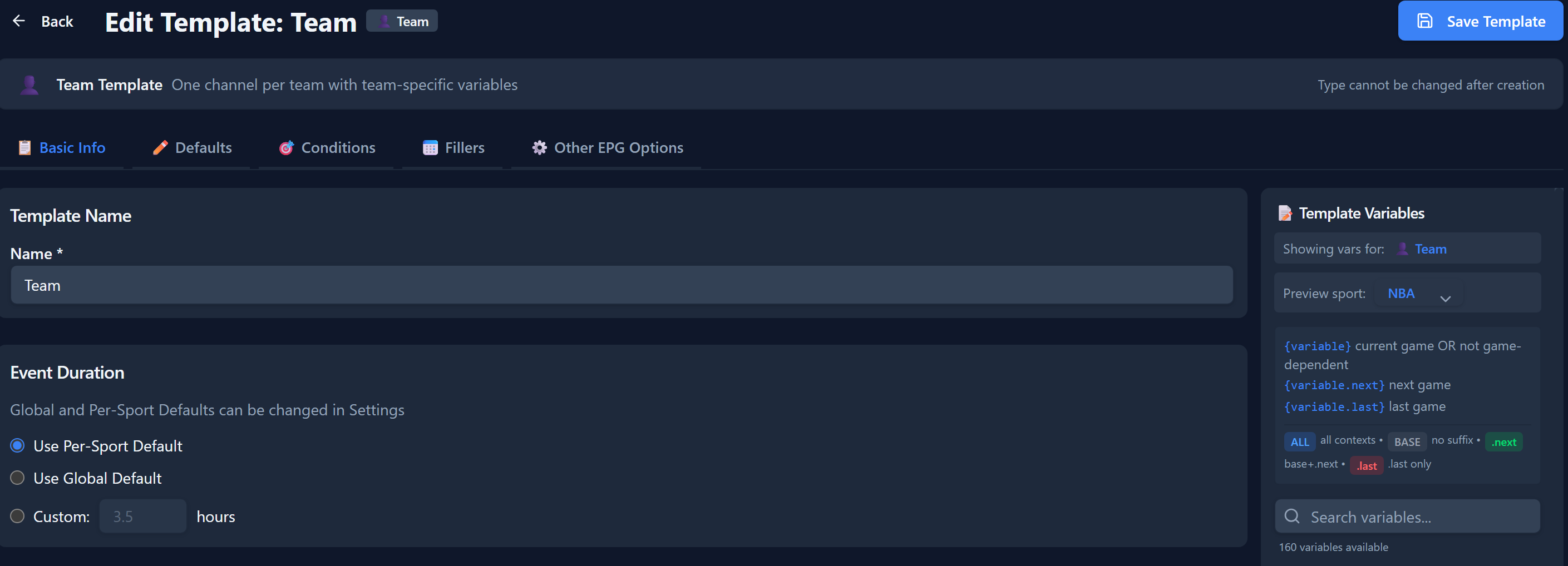
Editing Team Template
If you chose to create a Team template or edit a Team template the first page
will be Basic Info. Here you can name the template and set the duration of
events using this template or specify the per-sport or global default from
Settings
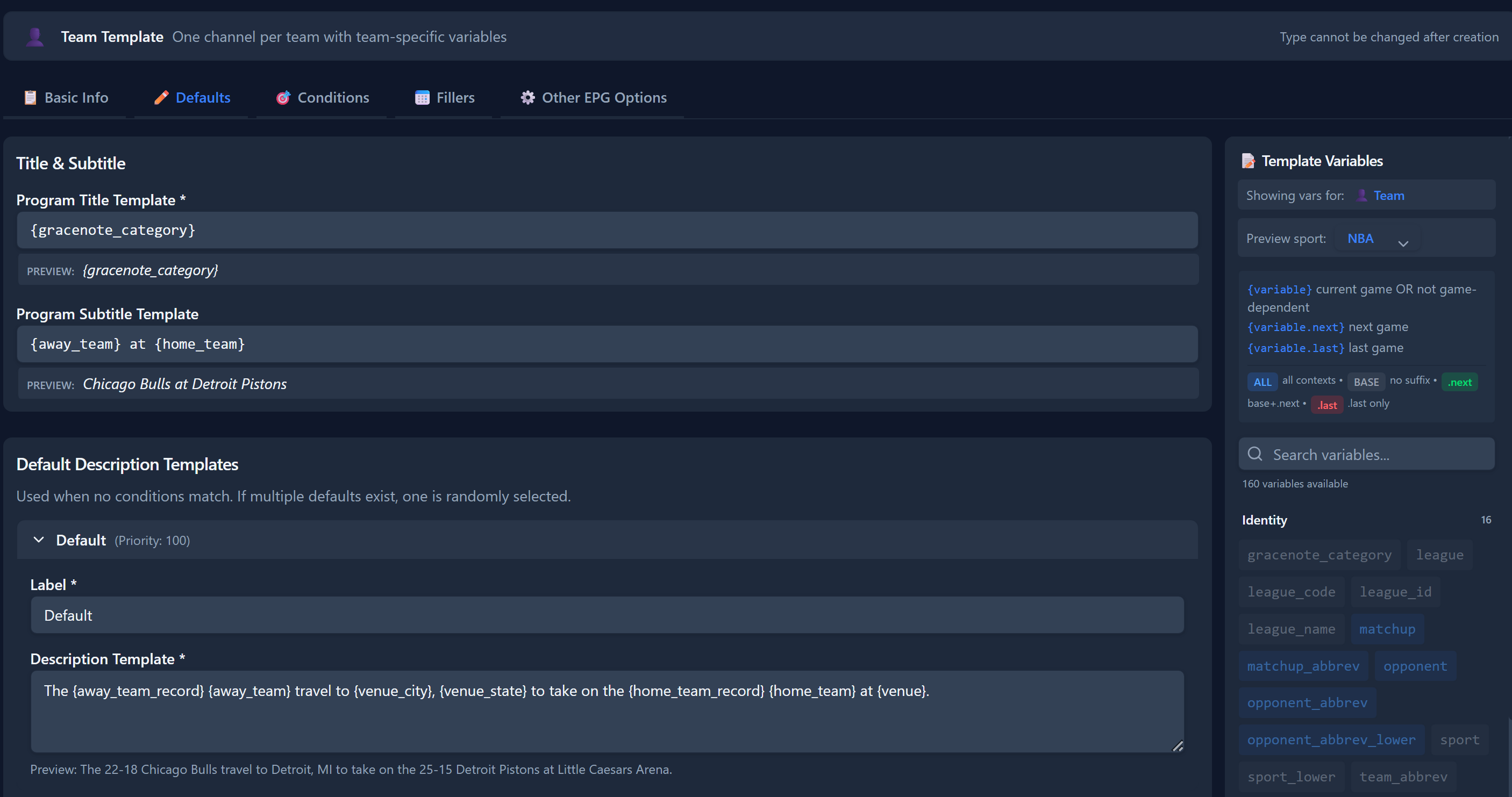
Template Defaults
Title & Subtitle - This is the Program
Title used in the EPG. {gracenote_category} uses the standard Title used
tn Gracenote based EPG when available such as "NFL Football" or "Women's College
Basketball". Subtitle is the Subtitle field used in many programs.
Default Description Templates - This is the description shown
for the program itself. You can use the Template Variables to customize
how you desire.
Program Art
Program Art Template - You can create a custom url for program art
using the variables. You may use your own docker hosted version of
Game-Thumbs Dynamic Sports Match
Logos or use the hosted instance of the dev Seth or the instance of
jesmannstl.

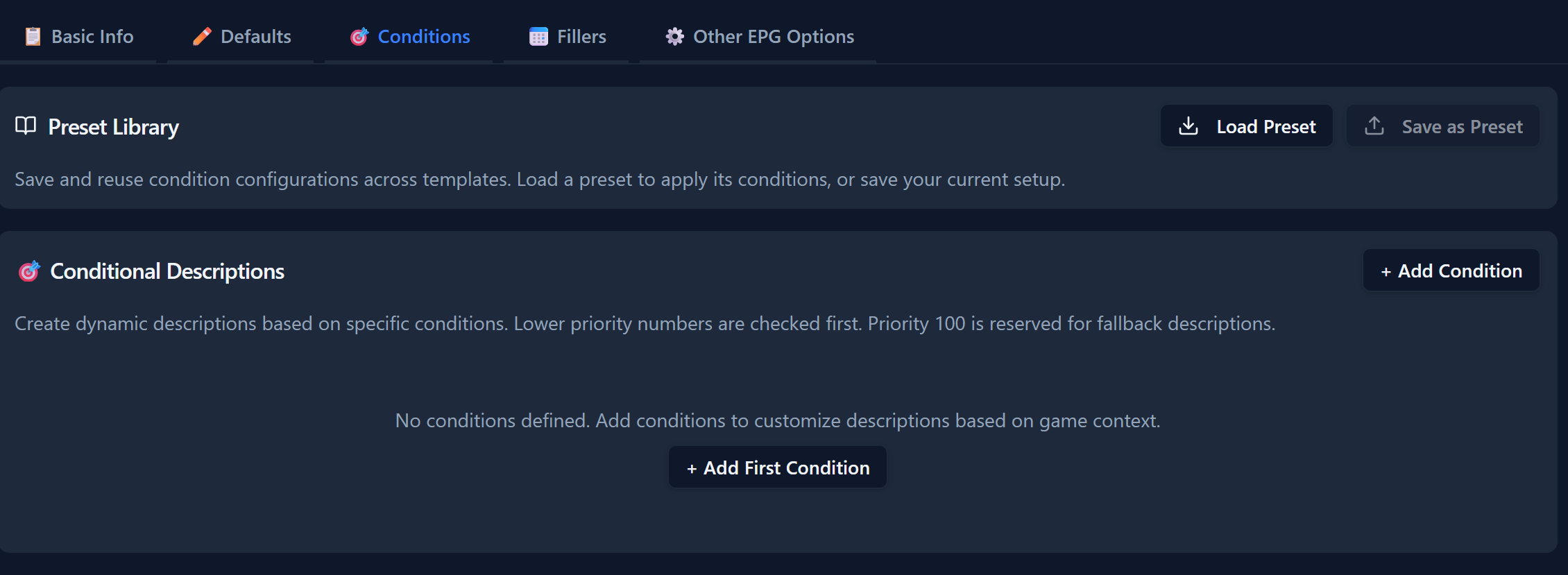
Template Conditions
This is only available on Team templates. Allows you to have a custom
description on specific conditions such as a winning or losing streak.
Template Fillers
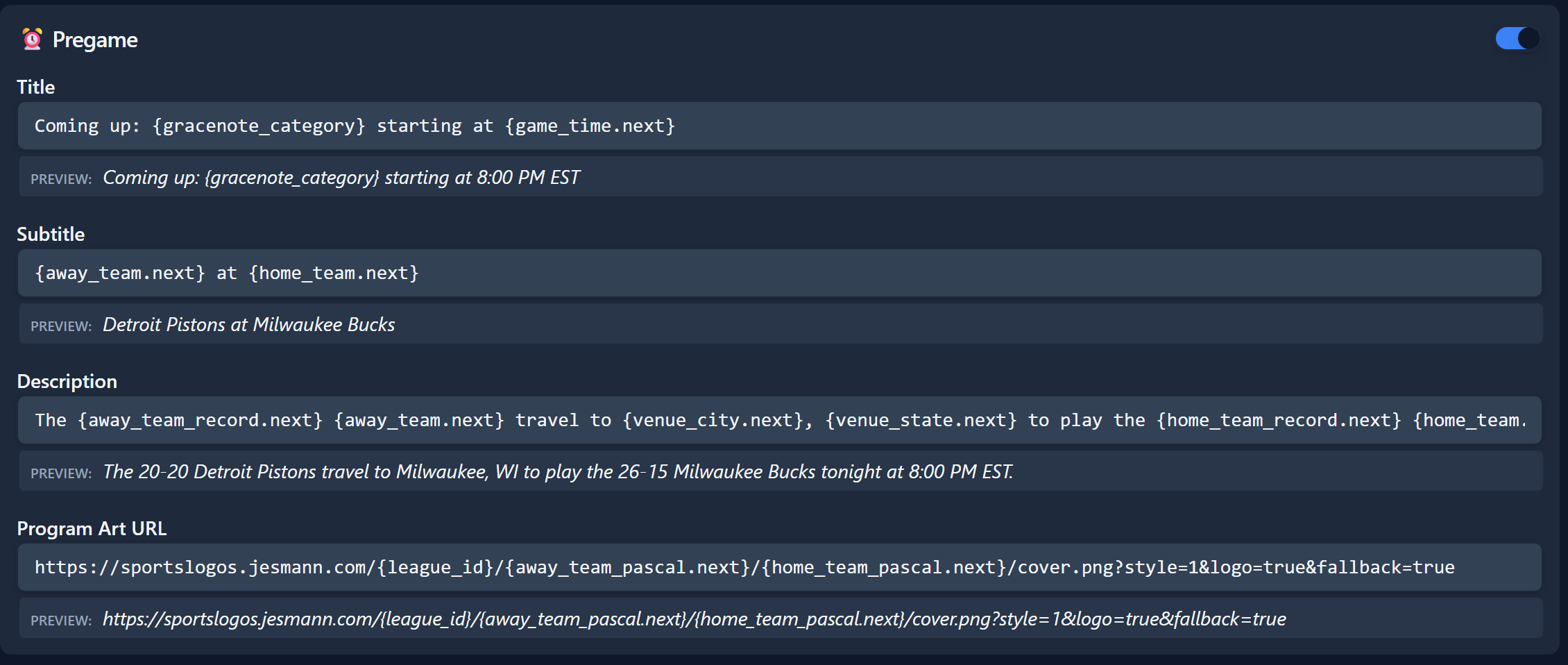
Pregame - These are the filler programs prior to a game/event.
For Team templates use the suffix ".next" to reference the upcoming game/event.
This works the same as the program using the variables to update.
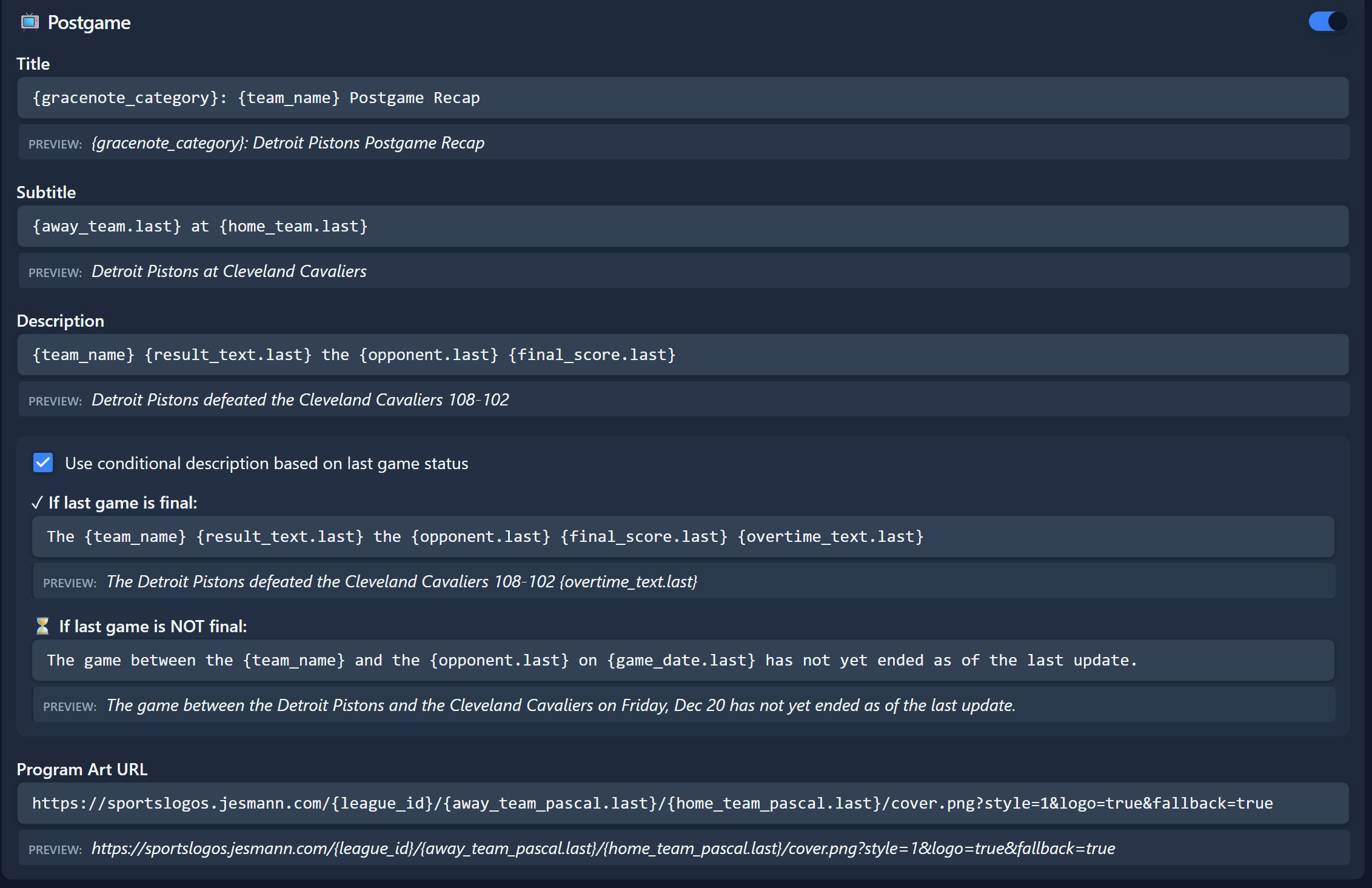
Postgame - This is the program entries
after a game/event until Midnight or the next gameday depending on your
settings. Team templates need to use the ".last" suffix to reference the
previous game. Event templates do not use the ".next" or ".last" suffixes.
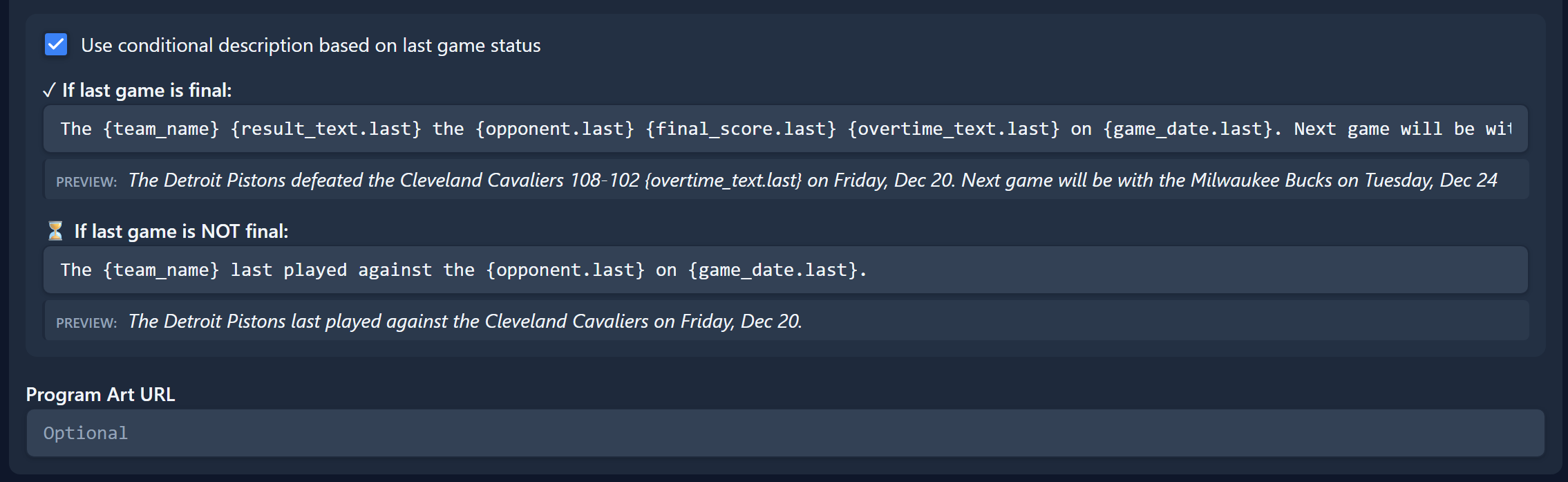
Condtional description based on last game status - Allows you
to have a custom decription in the EPG for events that have not ended as of the
last EPG generated or have ended if you wish to include outcomes.
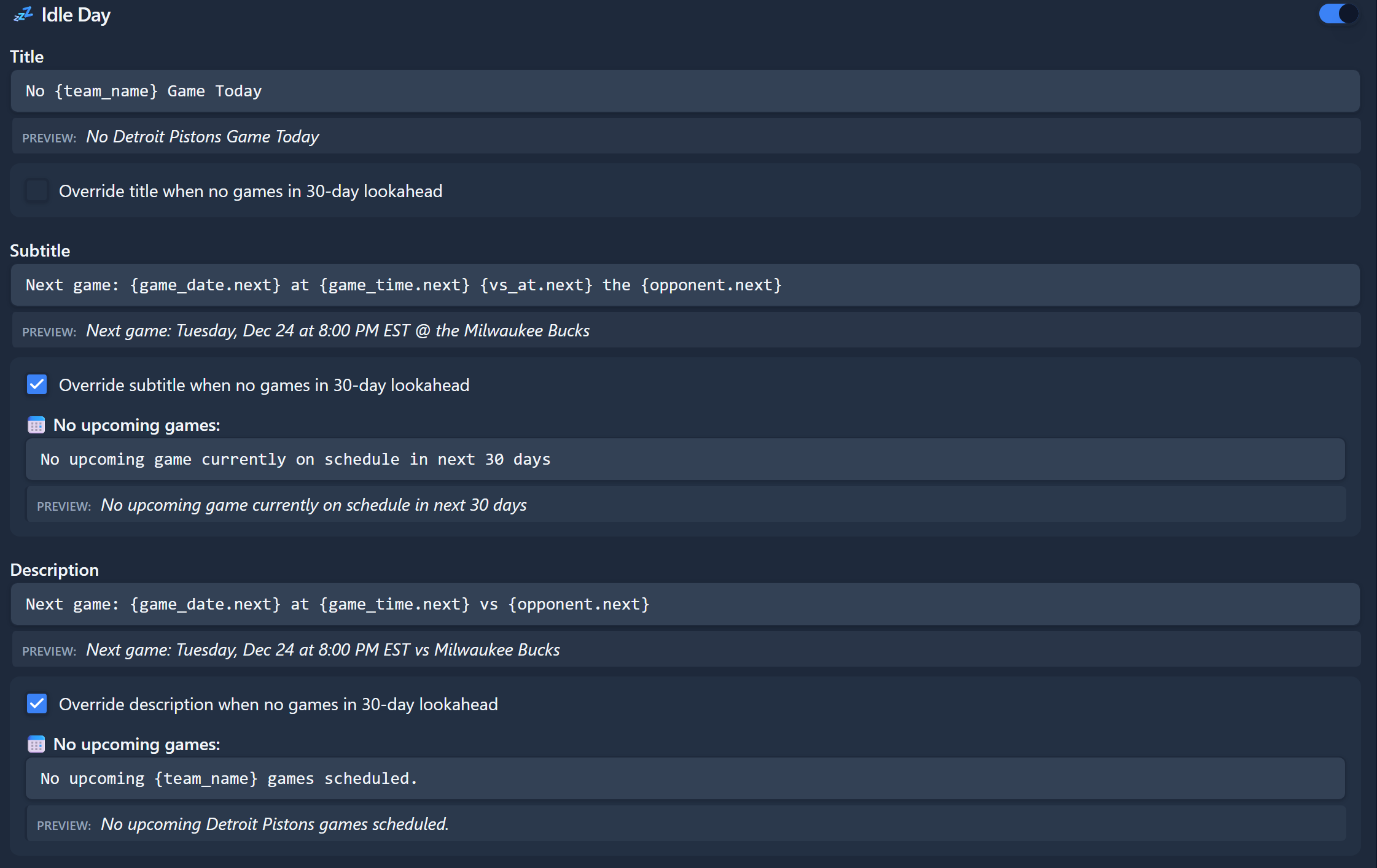
Idle Day
The Idle Day Template is filler description for Team Channels only that
appear on days the team does not gave a game. There are also conditional for the
subtitle and description if there are no games scheduled in the next 30 days
(off-season). You can use the ".last" suffix to reference the outcome of
the previous game and ".next" suffix to reference the next scheduled game.
Program Art if left blank would default to the Team logo.
Template Other EPG Options
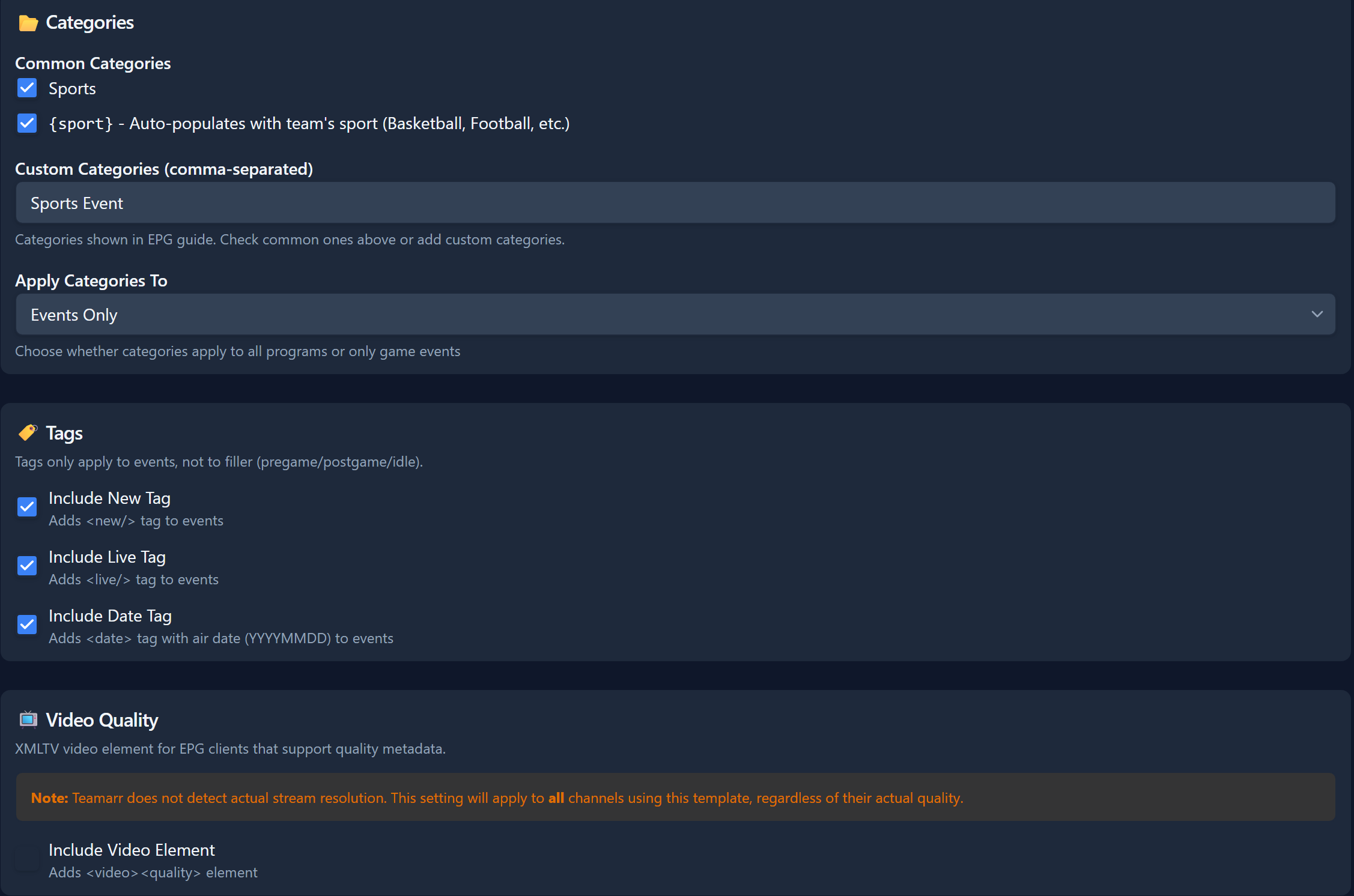
Categories - Adds <category>
tags to the EPG programs that certain players use to identify sports compared to
other programs.
Apply Catefories To - You can add the
categories to the events only or to the events and filler items.
Tags - Adds the <new/> and/or <live/>
tag to the event program. Date will add the <date> tag of the current date
(local time).
Video Quality - Adds a <video> section to the EPG with a
<quality> of your selection SDTV, HDTV, 4K/UHD. Important:
The Teamarr application does not test the video quality this is a self reported
tag and may not be accurate to your streams.
Once everything is setup click Save Template to save all changes and return to the Templates list.
Event Templates
Event Templates are similar except you need a Channel Name & Logo. You may
use a different logo style in Game Thumbs if you desire. This will be the
Channel Name and Logo used in Dispatcharr and players.
Event templates do not use the ".next" or ".last" suffix as all variables
reference this event only and do not have an Idle Day template.

To get started with Teams for Team EPG entries click
Import Teams
IMPORTANT NOTE: Teamarr
provides EPG ONLY for team channels as these don't change. Teamarr does
not create Team channels. Create your own channels in Dispatcharr and
assign the Teamarr EPG.

Import Teams
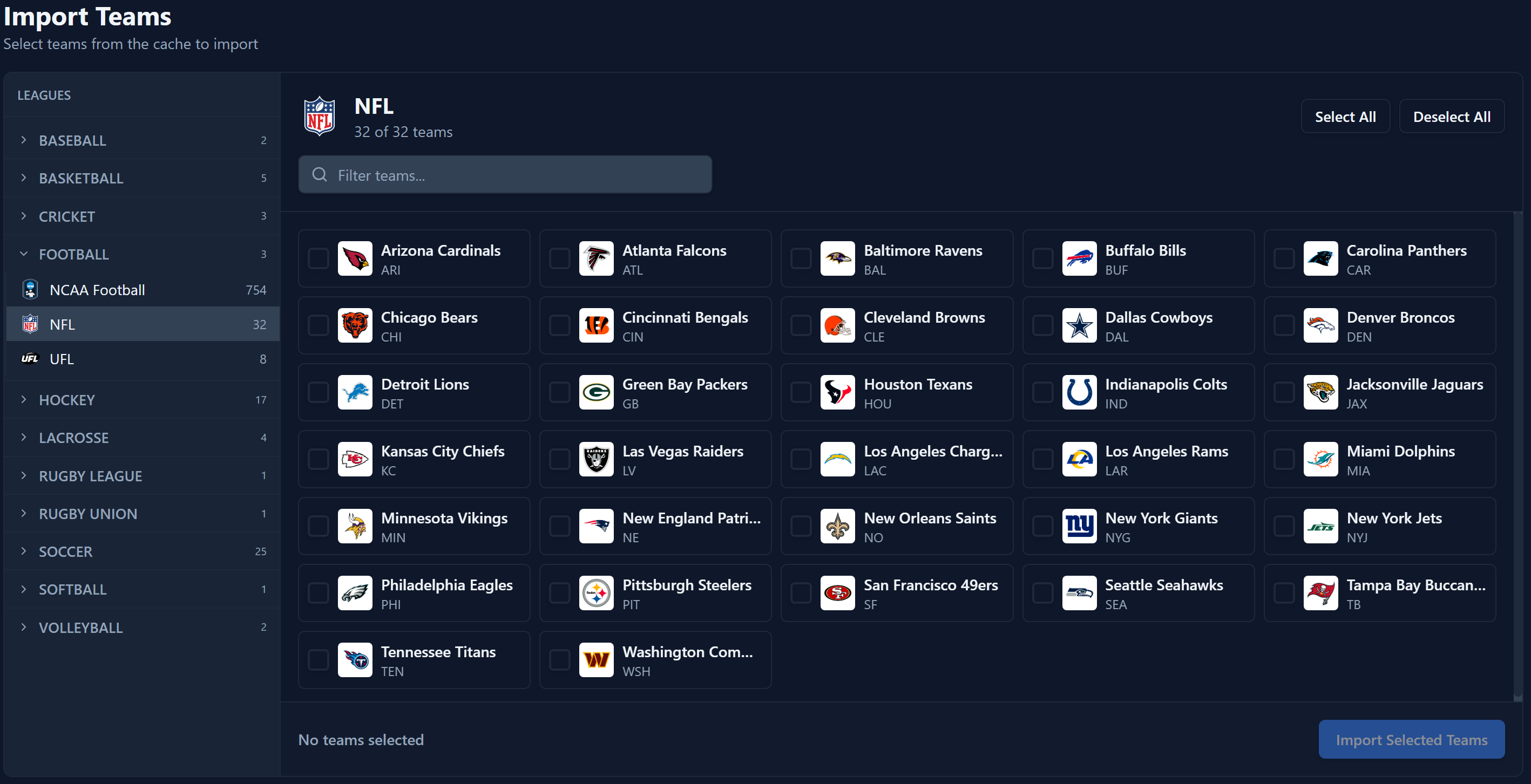
Select the sport from the left side then the league and check which
teams to import. You can also click Select All. Do this for each
sport/league combination. When done click Import Selected Teams.
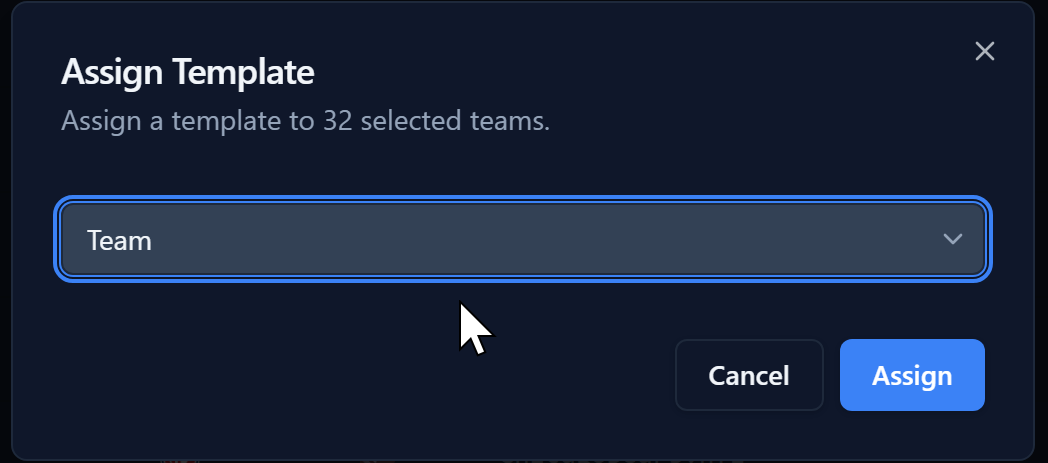
After import the Teams page will show all your teams. At the moment under Template they are Unassigned. You can select each or all and Assign Template at the bottom.
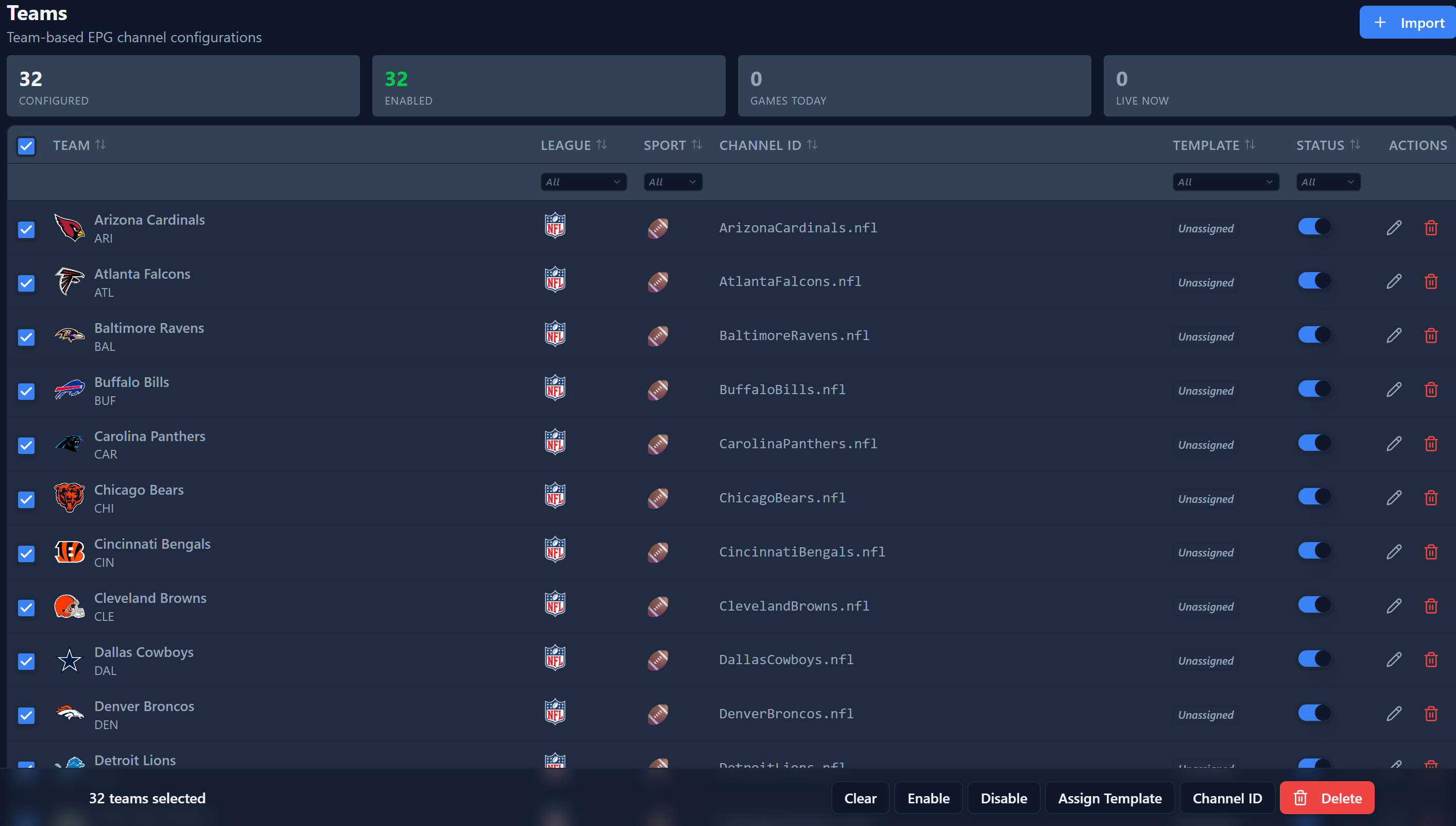
Select a Team template you created or imported earlier for your team channels and click Assign.
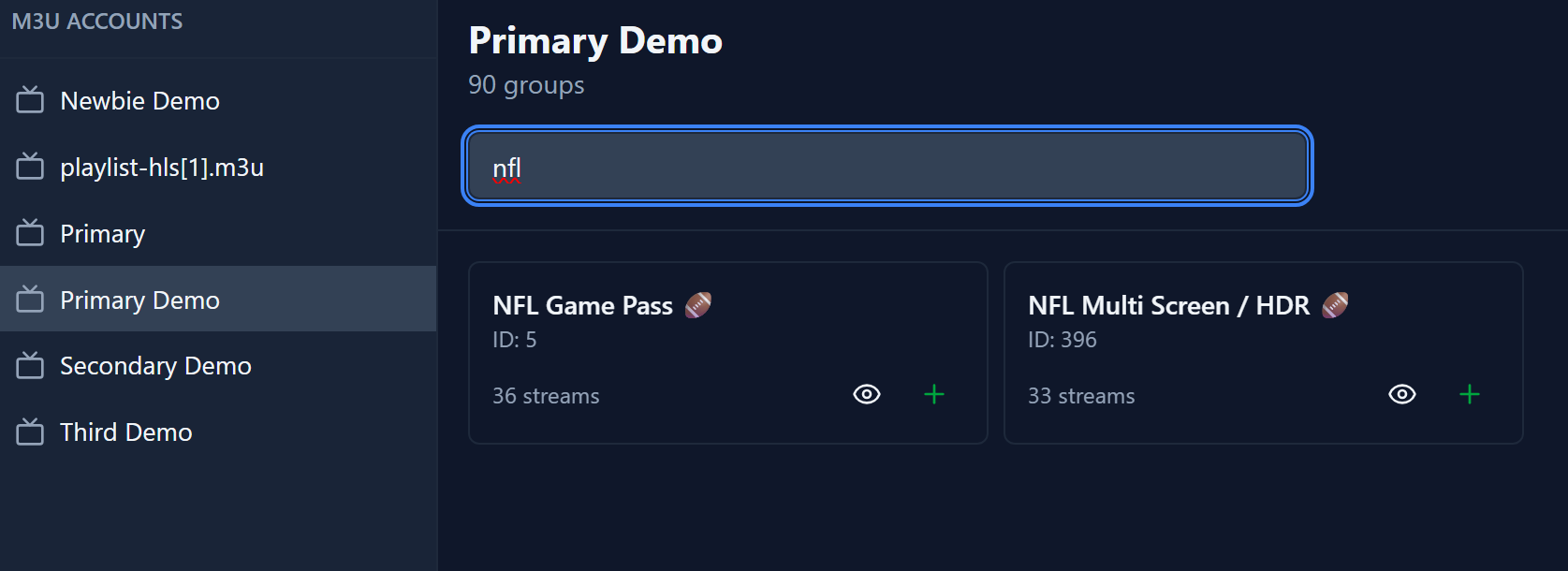
On the Event Groups page click Import to get started.

You will have a list of your M3U accounts in Dispatcharr on the left side. Once selecting an account you will see all the groups available listed or you can filter by typing a name. You can click the eye icon to see the streams in the group to import a group press the + sign.
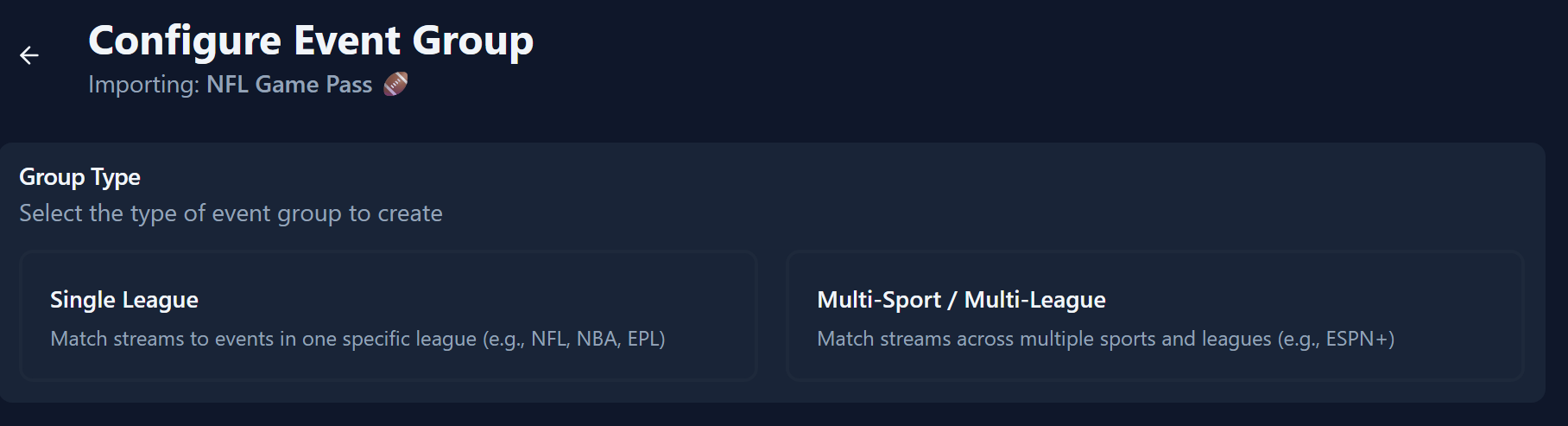
You will be prompted for the Group Type
Single League - All streams in the group you wish to import are
a Single League like NFL.
Multi-Sport/Multi League - Streams in this group may have
multiple different leagues you wish to import.
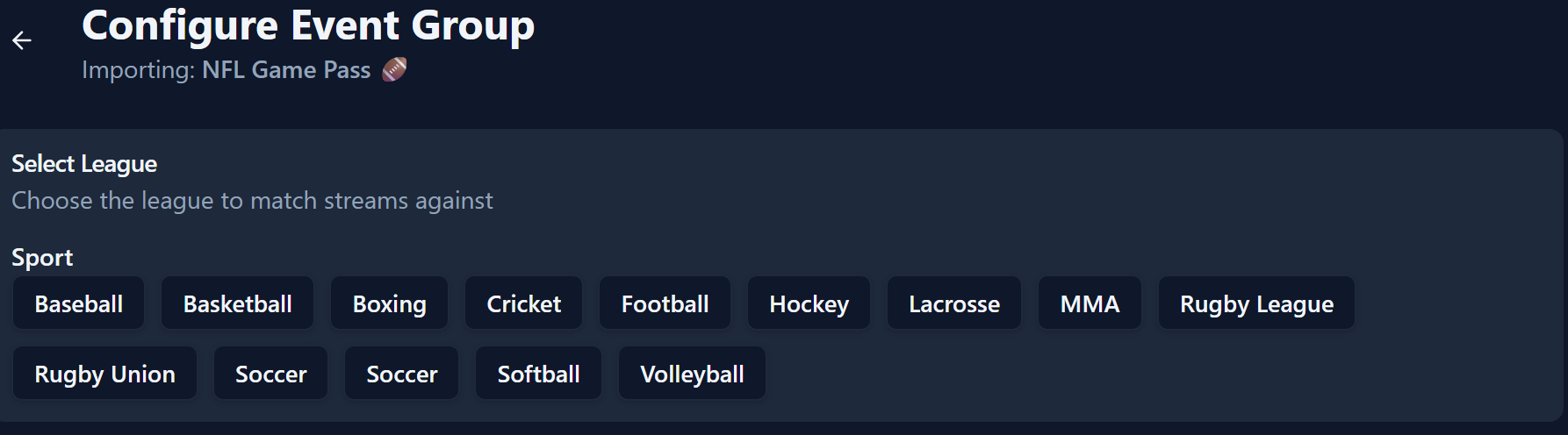
Single Group Import
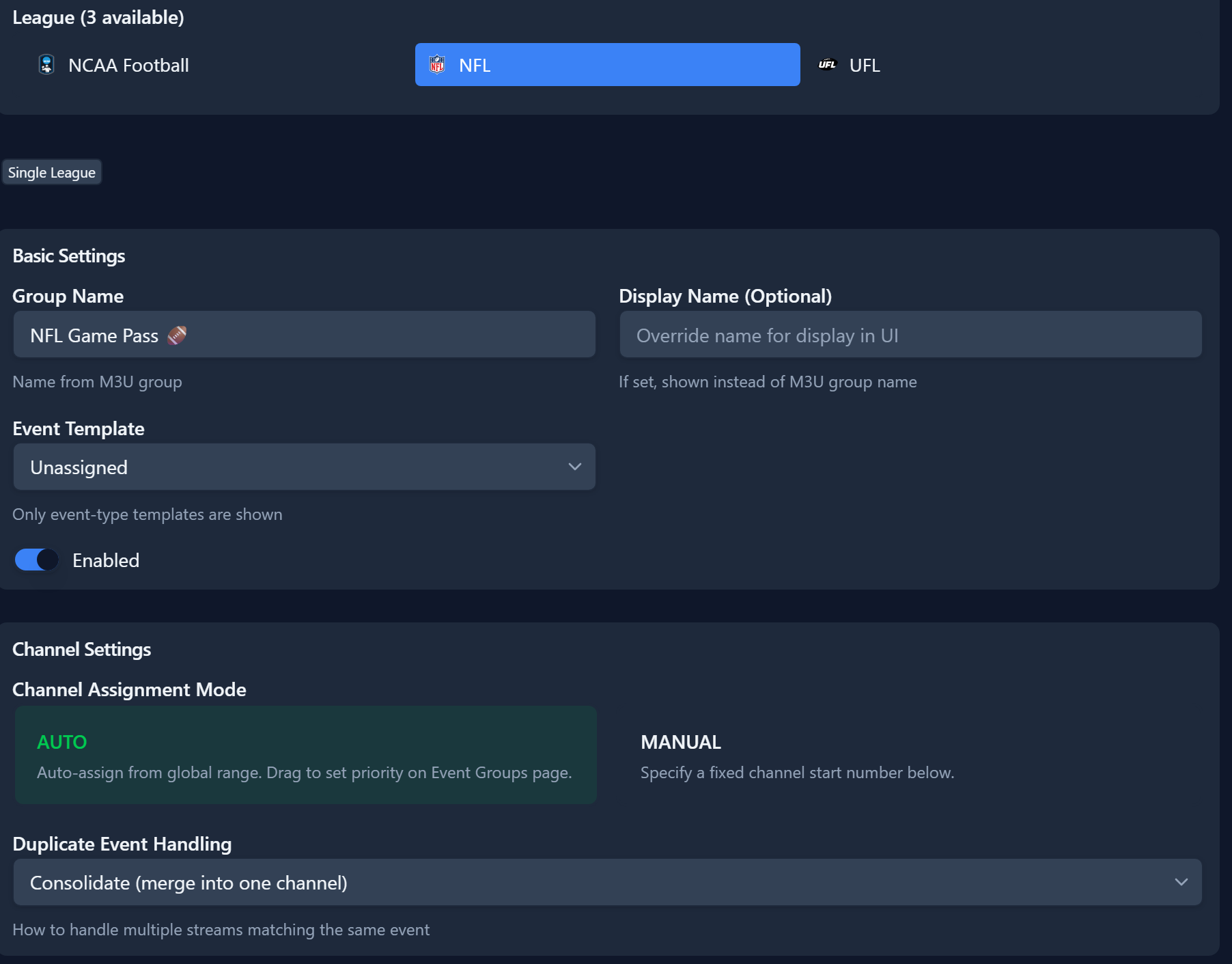
Select the sport type then League you wish to use for the group.
Basic Settings - You can change the group name or how it's
displayed in Teamarr.
Event Template - Select the Event Template you created or
imported to use for event EPG for the group.
Channel Settings - Auto will assign channel numbers based on
the global settings set. Manual will start at a number you specify.
Duplicate Event Handling - When you have more than one stream
in this group or child groups linked do you want to Conolidate, Duplicate or
Ignore the same as explained in Settings.
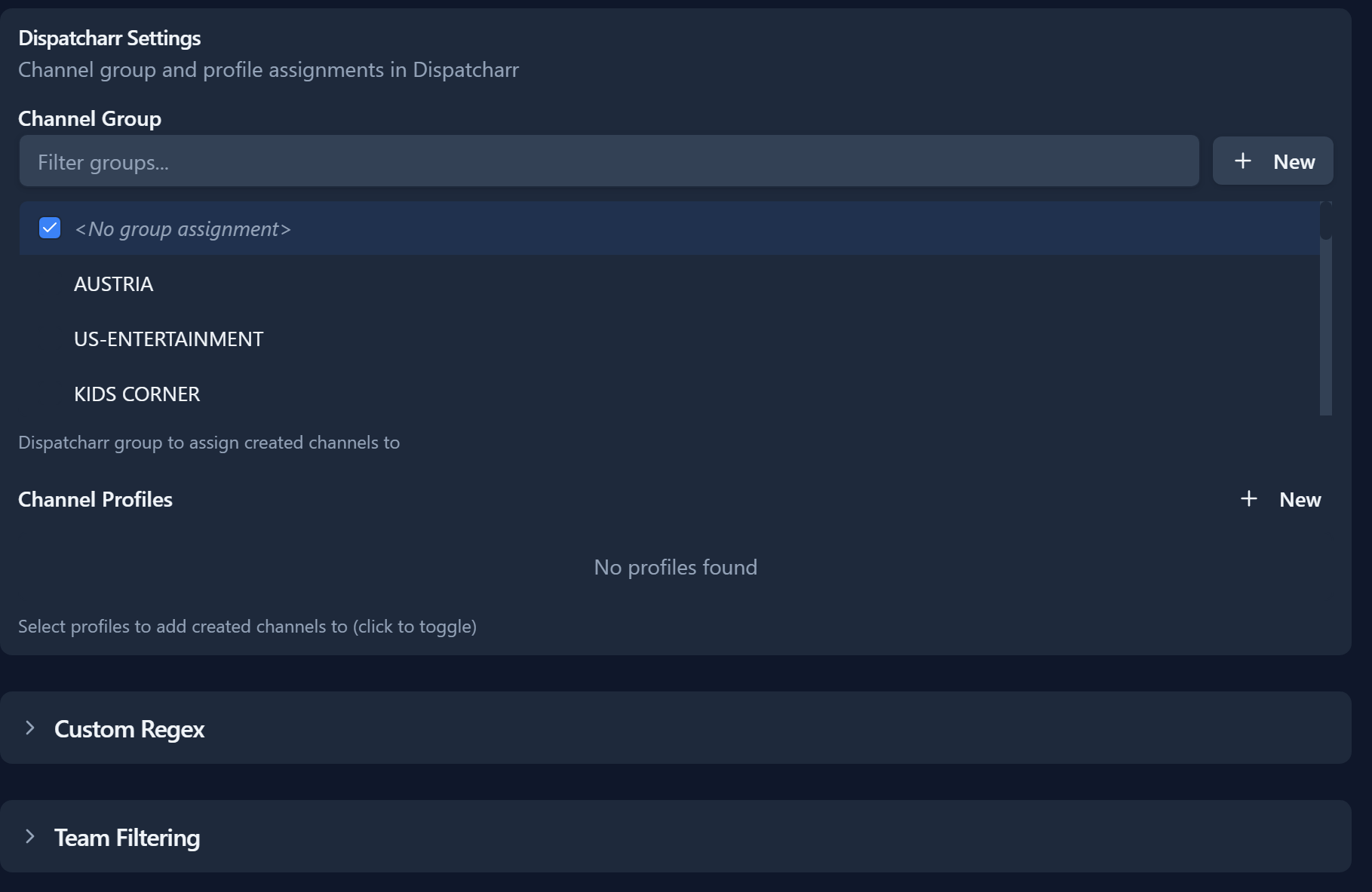
Dispatcharr Settings
Channel Group - Specify the group you want the event channels
to use
Channel Profiles - Specify any channel profiles for the event
channels to appear in Dispatcharr instead of the global settings.
Custom Regex - Advanced options to use custom regex to find
stream information.
Team Filtering - Allows you to inclue or exclude teams from the
group if not done in global settings.
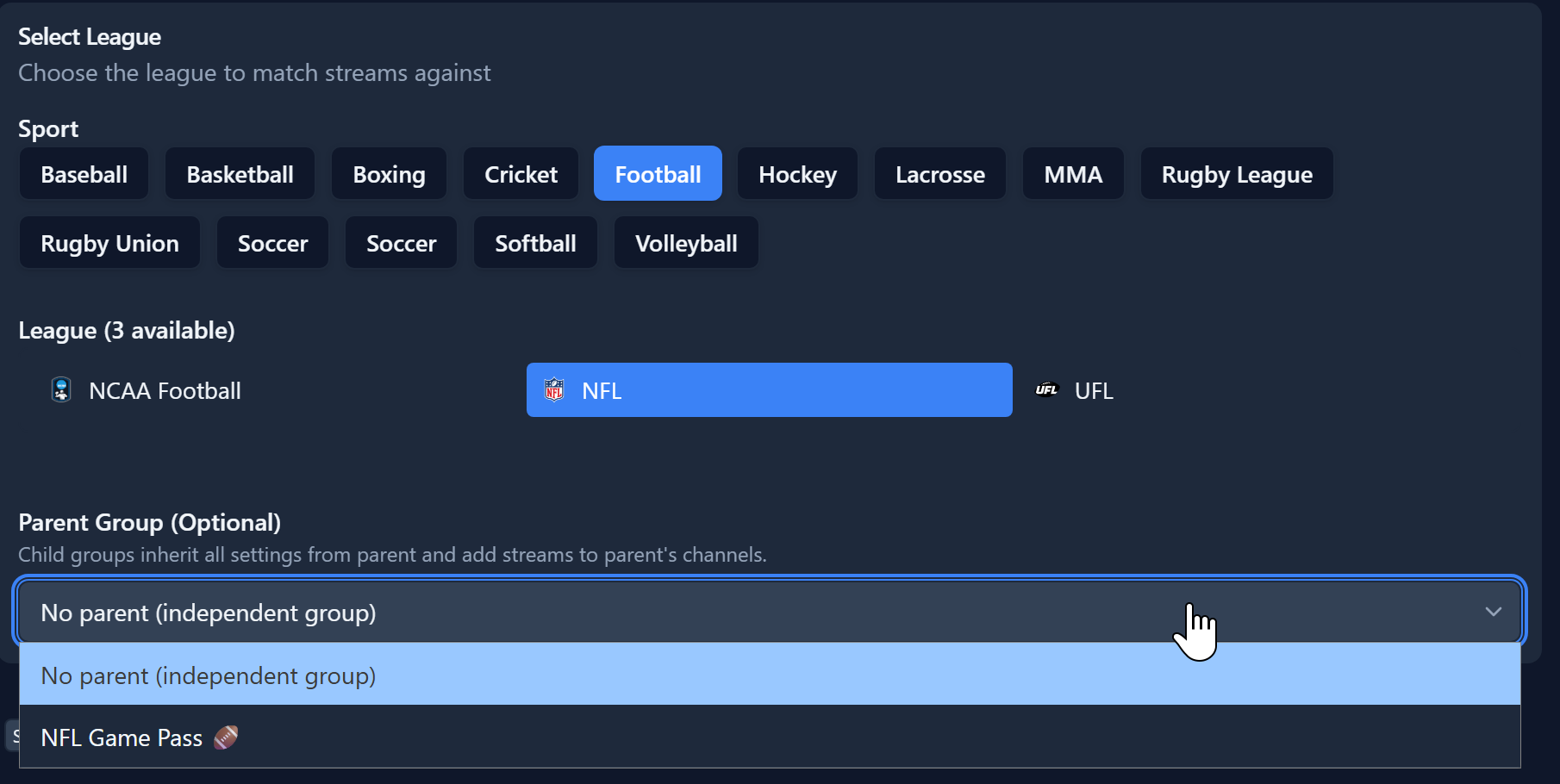
You can Import another group with the same league the same way but when the league is selected under Parent Group (Optional) select your previously imported group to be the Parent. All other settings will be inherited from the Parent Group.
Multi-Sport Groups
To Import a multi-sport group start the import process and select a group to
import then click Multi-Sport/Multi-League
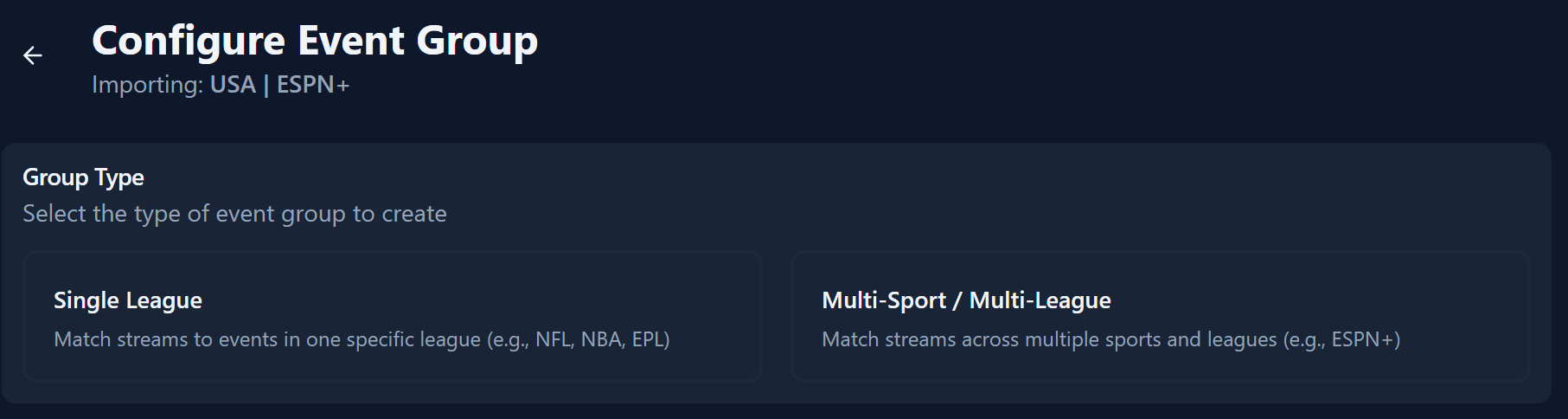
Configure Event Group
Select any or all of the Sports/Leagues you want from the group. You can
also Select All at the top to include all of the sports and leagues available.
The remaining settings are the same as the other import. Repeat the
process for all groups you wish to include.

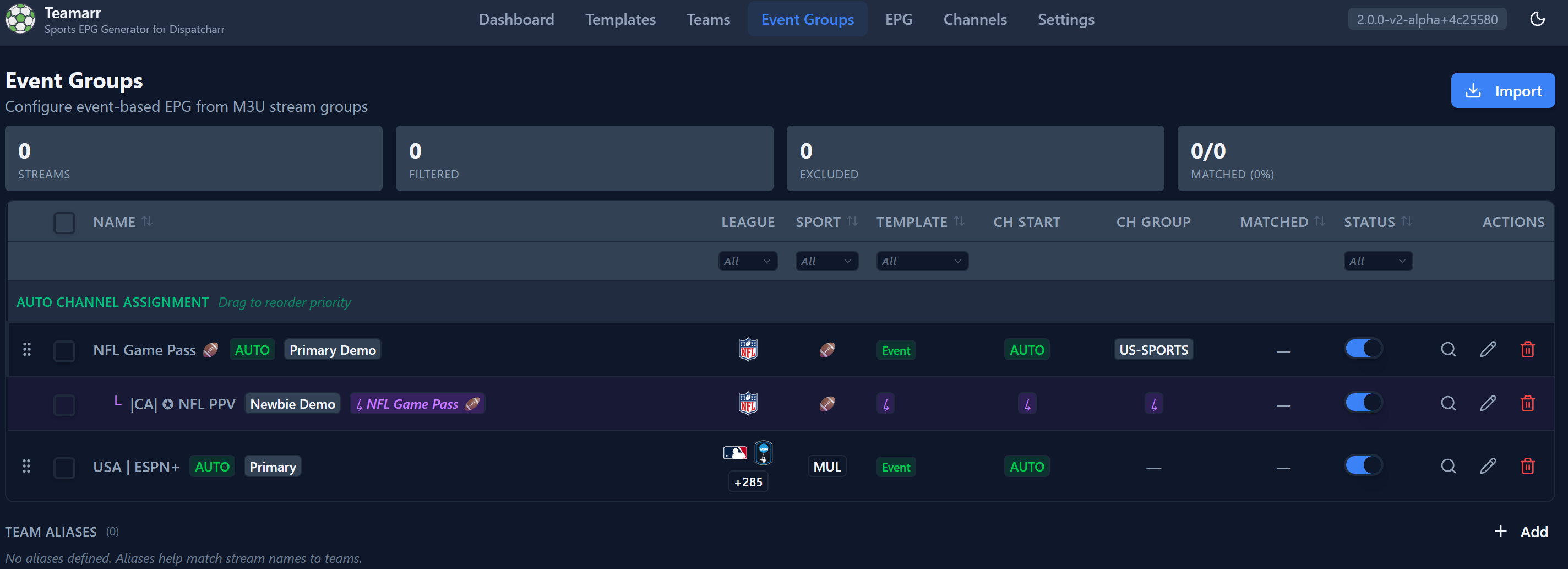
Once complete you will see all your groups including any Parent/Child groups and Multi-Sport groups
Now that everything is configured you're ready to generate your EPG. You do need to copy the EPG URL and add it to Dispatcharr as an EPG source. At the top you can copy the EPG link the default would be https://localhost:9195/api/v1/epg/xmtv but it may be different depending on your configuration to use ip or a different port.

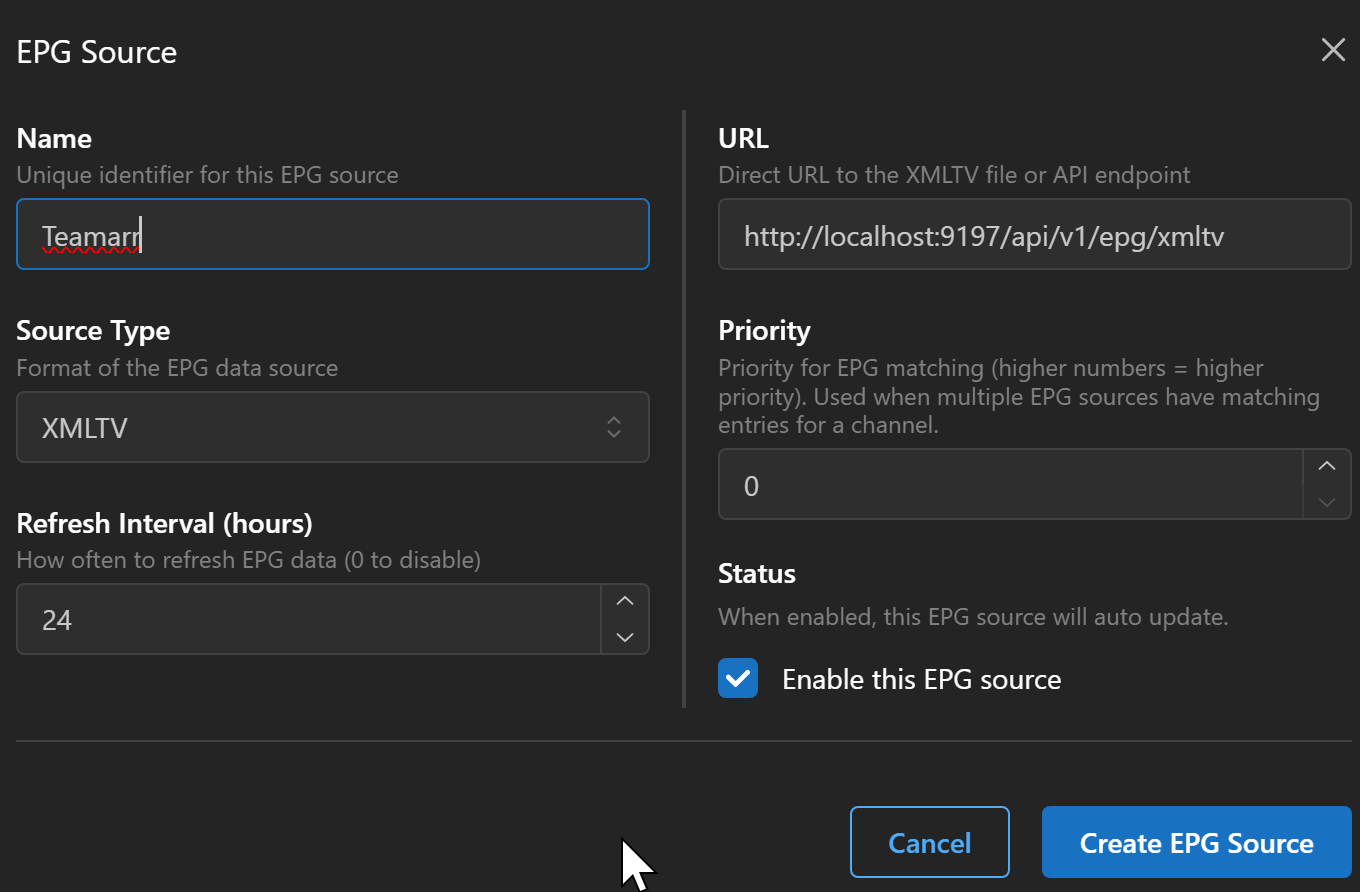
Then go to Dispatcharr M3U & EPG Manager and click add EPG and Standard EPG. Name the EPG source and paste the URL and Create EPG Source. Ten go back to the Teamarr Settings under Integrations and select the newly created EPG to link to Teamarr to automatically refresh on EPG Generation.
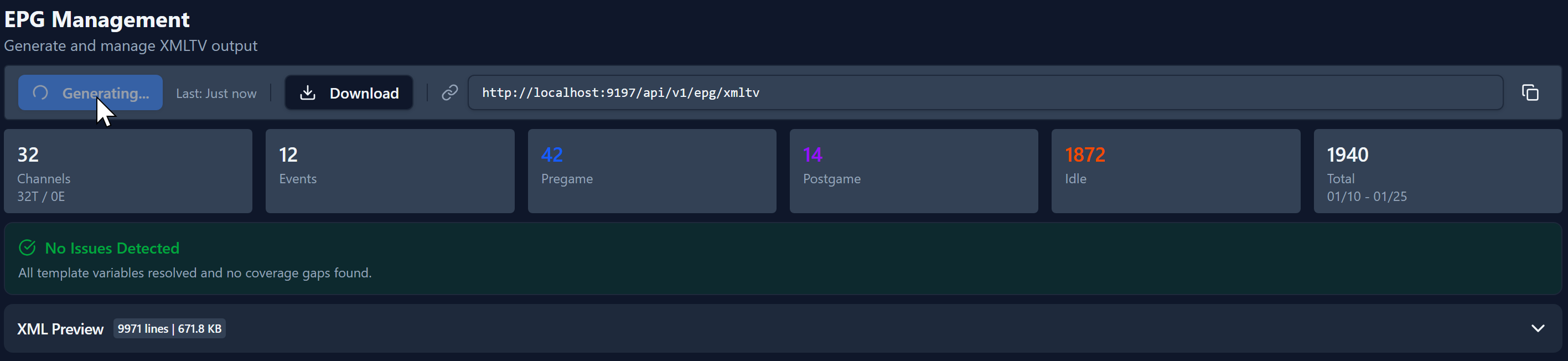
EPG Management
Click Generate to generate your first EPG and create Event
Channels. This process may vary depending on the amount of teams and event
groups. You will see the process in the lower right corner.
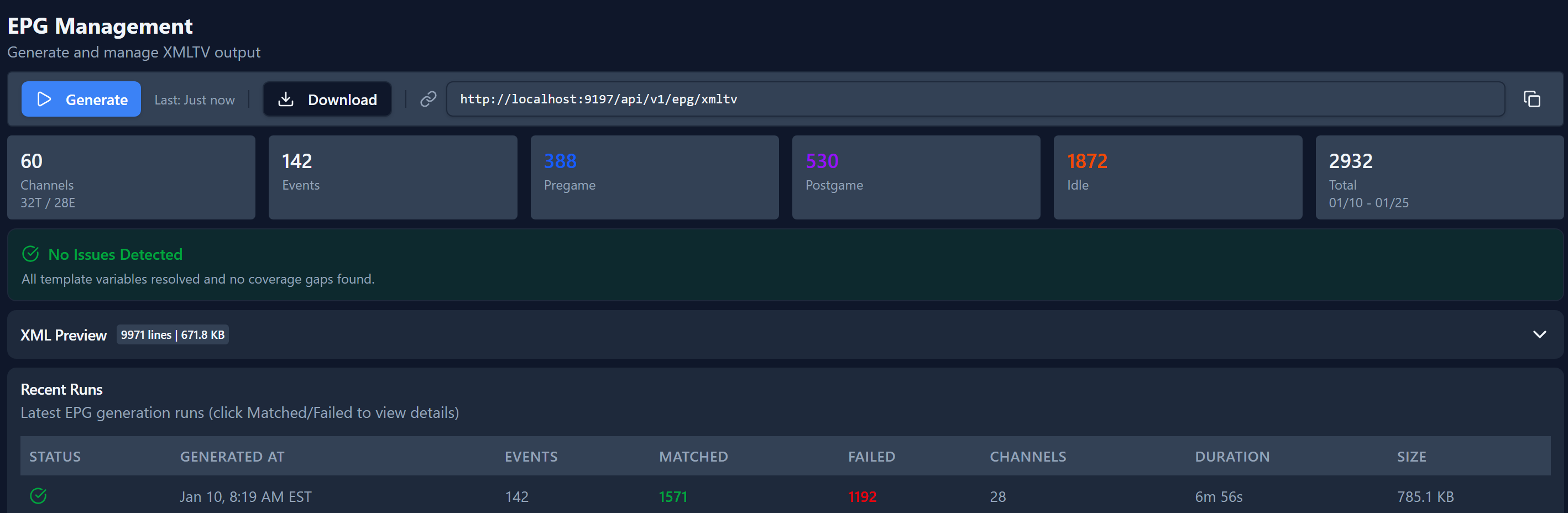
Once complete you will see the status and the number of events and channels etc. This information is also on the Dashboard.
On the Channels page you will see the created channels and their details. You can use the Find Orphans if your Ddispatcharr has any leftover channels that should have been deleted and Reset All will delete all Teamarr created channels until the next EPG generation.
You will now see the newly created channels in Dispatcharr assigned to the guide data.

You can view the TV Guide in Dispatcharr to see the results